
TLDR
What's actually different between Dropover and cursorrobin on a Mac? Dropover opens a shelf where you shake the pointer and leans on sharing: cloud links, AirDrop, text extraction, ZIP and scripts. It is also the cheaper of the two. cursorrobin keeps a small orb at your cursor that becomes a shelf when you drag, and fixes files on the way: shrink, convert, scale, remove a PDF password.
What's actually different between Dropover and cursorrobin on a Mac?
The shelf idea is the same in both. You pick up files from Finder, drop them on the shelf, switch apps or Spaces, and drag them out where they belong. The differences are in three places:
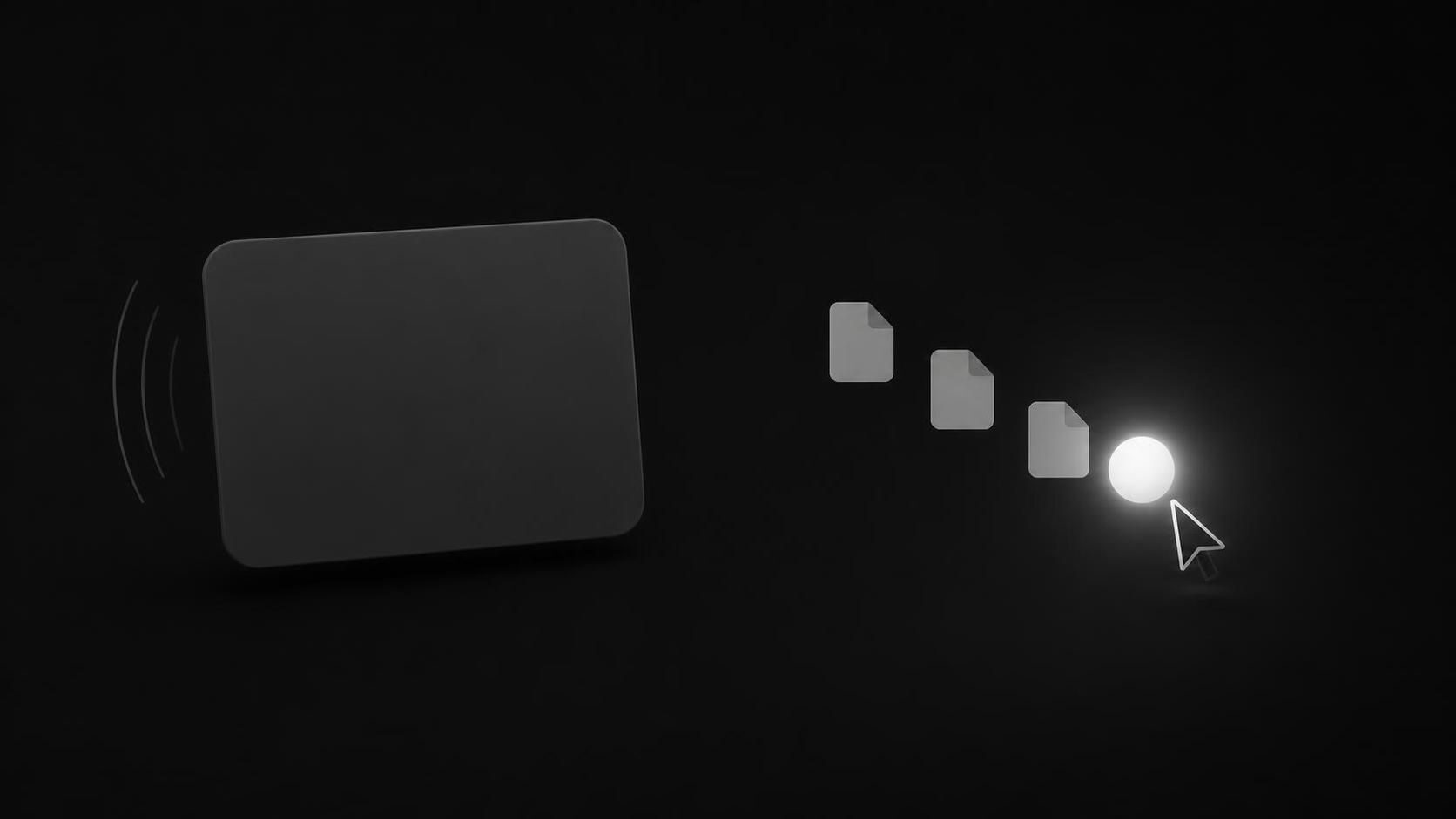
- How the shelf shows up. Dropover appears where you shake the pointer, hold a modifier key, or drop on the menu bar icon or the MacBook notch. cursorrobin's orb, Robin, already trails your cursor once you switch him on, and a file drag opens the shelf under it.
- What the shelf does to the files. Dropover adds sharing and automation. cursorrobin adds file fixes for images and PDFs.
- What it costs, and what happens after the trial. Dropover Pro is a one-time in-app purchase and the free app keeps working with a delay. cursorrobin is a one-time purchase that asks for a key once its trial ends.
Dropover | cursorrobin | |
|---|---|---|
Opens with | Shake, modifier key, shortcut, menu bar, notch | Shortcut or shake to switch on, then any file drag |
Where the shelf appears | Where you shake or drop | At the cursor, where Robin already is |
Resize and convert images | Yes | Yes (PNG, JPG, HEIC, PDF) |
Shrink images and PDFs | Not listed | Yes, with an estimate first |
Remove a PDF password | Not listed | Yes, with the password |
Extract text (OCR) | Yes | No |
Cloud upload and share links | Yes | No |
Scripts, Shortcuts, Raycast and Alfred | Yes | No |
Notch as a drop target | Yes | No |
Where to get it | Mac App Store only | Direct download, Apple Silicon build |
Dropover's column comes from its App Store listing, its website and its FAQ, all read on 13 October 2026. "Not listed" means neither page mentions it, not that it is impossible with a custom script.
How each shelf appears
Dropover's own page says "Shake your pointer to open a shelf", with adjustable sensitivity and a list of apps where the gesture is off. John Gruber, who moved to Dropover from Yoink, described the shake as "Give me a shelf right here" and noted the modifier-key option defaults to Shift. It is a good gesture. You do it once per shelf.
cursorrobin moves that decision earlier. You switch Robin on with Control-Command-D (remappable in Settings) or a shake. From then on the orb sits a short, adjustable distance from your pointer and settles when you stop moving. When you start dragging a file anywhere on the Mac, the shelf opens under it, so the drop target is where your hand already is. When the drag ends without a drop, the shelf folds back to the orb.
Two details matter in daily use:
- A shelf with files on it travels with you. Move to another window or display and the loaded shelf follows the cursor. Pin it and it stays parked where it is; the shortcut then fetches it back to the cursor instead of hiding it.
- Switched off means switched off. While Robin is inactive he ignores drags completely, so he never appears during ordinary drag and drop you did not mean for him.
Which is quicker depends on how often you shelve files. A few times a day, Dropover's shake costs nothing and stays out of sight in between. Dozens of times a day, having the target already at the cursor removes the gesture from every trip.
File fixes on the way
Images
Dropover's App Store listing names "resizing and converting images" among its actions, and its Instant Actions run a task the moment you drop files on them.
cursorrobin's shelf has the same jobs as named buttons:
- Convert to PNG, JPG, HEIC or PDF. A folder of iPhone HEIC photos becomes JPGs for a web upload in one step.
- Shrink JPEGs and PNGs, with an estimate of the result before you commit.
- Scale by percent, the whole shelf at once.
PDFs
This is where the two differ most. cursorrobin can shrink a PDF before you attach it, and remove the password from a PDF you have the password for, producing an unlocked copy. Neither Dropover's listing nor its website mentions either.
Dropover can extract text from what you drop, which cursorrobin cannot. If you copy text out of screenshots or scans, that is a real reason to pick Dropover.
What happens to the original
Dropover's FAQ says the shelf keeps a reference to the file, and dragging it out of the shelf moves the file by default (hold Option to copy). cursorrobin copies each file onto the shelf when you drop it. Converting, shrinking or scaling produces a new file next to it, and that is what rides out on the drag. The original stays where it was, untouched.
Neither approach is wrong. Dropover's matches what Finder does with a drag. cursorrobin's means a shrink or convert can never overwrite something you meant to keep.
If you only convert now and then, macOS has it built in: Finder's Convert Image quick action picks a format and size, as Apple's Mac User Guide describes for macOS 27. A shelf earns its place when the conversion happens on the way somewhere else. Every built-in route, from Preview to the sips command, is in how to convert and shrink files on a Mac.
Dropover Pro price, trial and what the free tier keeps
| Dropover | cursorrobin | |
|---|---|---|
| Price | Free, Pro $7.99 one-time (US App Store) | $9.99 one-time |
| Subscription | No | No |
| Trial | 14 days, fully functional | 10 days, the full app |
| After the trial | Keeps working, 3-second wait before the shelf | Stops accepting new files; staged files can leave |
| Licence | Restore Pro on other Macs, same Apple account | Activation key from the checkout |
| Where to buy | Mac App Store only | cursorrobin.app |
The Dropover figures come from the US App Store listing (Dropover Pro, $7.99) and Dropover's FAQ, which calls Pro "a one-time purchase, not a subscription" and says it is "exclusively available through the Mac App Store". Prices differ between App Store countries.
So the honest answer on price: Dropover costs less, and its free tier is more generous. You can use it indefinitely with the delay. cursorrobin's case is not price. It is the shelf at the cursor and the file fixes, bought once with no subscription, which is the same model Dropover uses.
When a cursorrobin trial ends, the shelf refuses new drops and summoning it opens the activation screen. Files already on the shelf can still be dragged out, so nothing is ever stuck.
Where Dropover is the better choice
Specifically, Dropover is the better buy when:
- You share links. cursorrobin has no cloud upload and makes no links. Dropover's website lists Dropover Cloud plus five other destinations.
- You read text out of images. cursorrobin has no OCR.
- You automate. Custom actions, scripts, Siri Shortcuts, Raycast and Alfred. cursorrobin's actions are fixed.
- You use the notch or watched folders. Dropover can collect new downloads and screenshots automatically and treats the notch as a drop target.
- You want the Mac App Store. Dropover is sold only there, and Pro restores on another Mac through the same Apple account.
- You are on an Intel Mac. The cursorrobin download is built for Apple Silicon. Dropover's listing asks only for macOS 13.0 or later and names no chip.
Switching from Dropover: what changes
If you move from Dropover to cursorrobin, expect this:
1
Pick a summon: keep the shake (it switches Robin on and off) or set your own shortcut in Settings.
2
Stop thinking about the gesture. Once Robin is on, starting a file drag is the summon.
3
Expect copies. Dragging out of cursorrobin hands over the shelf copy; your original stays in its folder.
4
Use Pin where you used a pinned Dropover shelf: it parks the shelf in place.
5
Keep another tool for links, OCR and scripts. cursorrobin does not do them.
Both apps can run at once. If you rely on Dropover's uploads but want cursorrobin's PDF shrink, nothing stops you from keeping both through a trial and seeing which one your hand reaches for.
Which Mac shelf app to buy
A rough guide by job:
- Designer handing off exports: cursorrobin, for convert, shrink and scale on the shelf.
- Anyone attaching PDFs to forms and email: cursorrobin, for PDF shrink and password removal.
- Sharing screenshots as links all day: Dropover, for Dropover Cloud and watched folders.
- Scripters and Raycast users: Dropover.
- Occasional use on a budget: Dropover's free tier, or Finder's own quick actions.
If neither fits, the Dropover alternatives and the best file shelf apps for Mac cover the rest of the field, and what a file shelf at your cursor is good for explains the idea behind Robin.
Frequently asked questions
FAQ
Frequently asked questions
Dropover Pro is $7.99 once on the US App Store, and the free app keeps working after the 14-day trial with a 3-second wait. That is good value, and cursorrobin is not cheaper. Pick by features: Dropover for links and automation, cursorrobin for a shelf at the cursor and file fixes.
Mostly. You still drop files on a shelf and drag them out. You switch Robin on once instead of shaking for each shelf, files are copied onto the shelf rather than referenced, and uploads, OCR and scripts are not part of cursorrobin.
No. Files stay on your Mac and there is no cloud upload. If you need a link, Dropover does that, or upload from the browser by dragging the file off the shelf.
Yes. They are separate apps. If you keep Dropover's shake on as well as cursorrobin's shake toggle, set one of them to a shortcut instead so a single shake does not trigger both.
The download is built for Apple Silicon Macs. Dropover's App Store listing requires macOS 13.0 or later and names no chip.
A shelf at your cursor, bought once
Try the full app free for 10 days, then keep it for $9.99, once. No subscription, no account.
macOS · 10-day free trial · one-time purchase